Create New Dubbing
Last Updated: July 22, 2025
Updated by: GoodDub Support
You can create your new dubbing projects on this page. Let's look at how you can do this step by step.
Accessing the "Create New Dubbing" Page
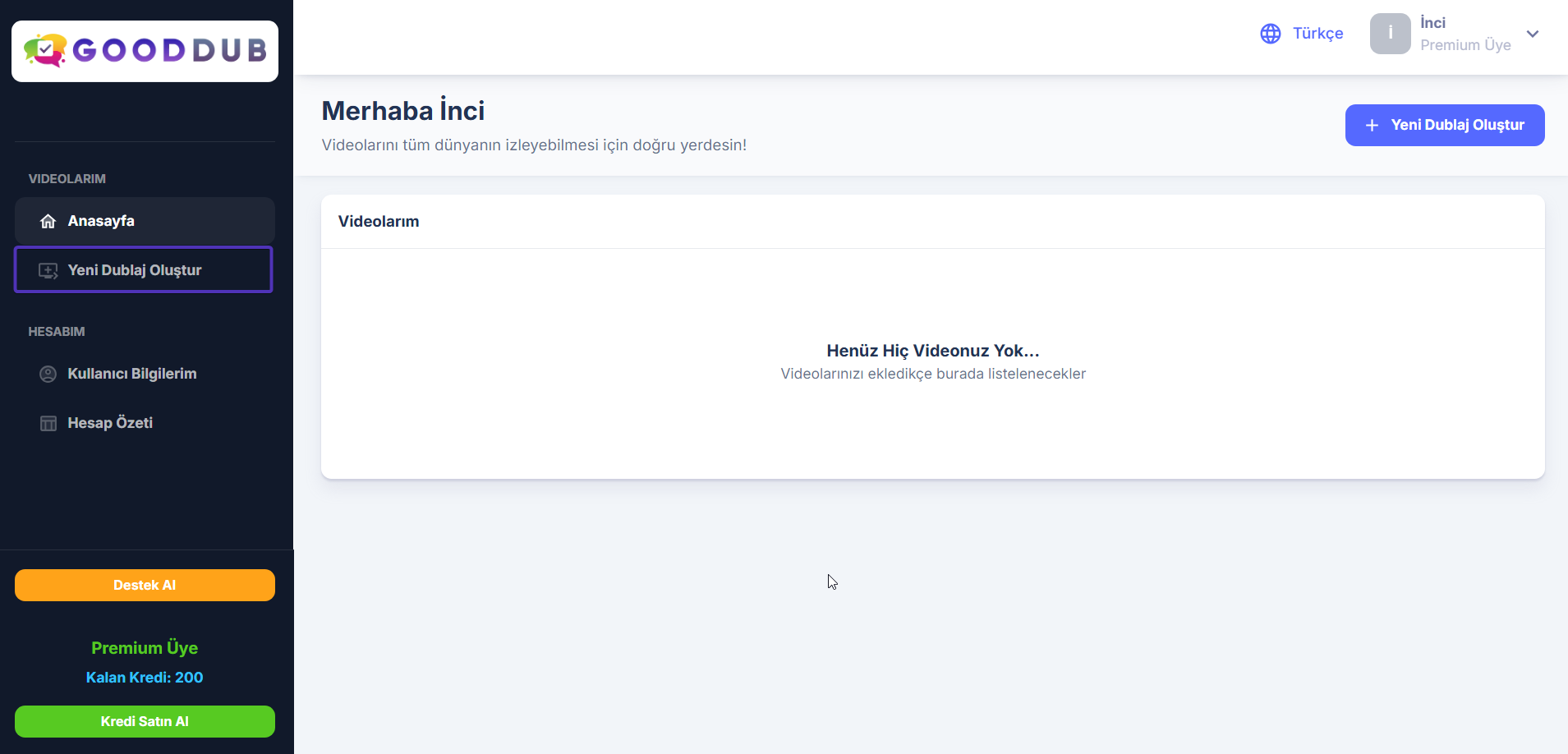
Click on the "Create New Dubbing" tab in the left menu.
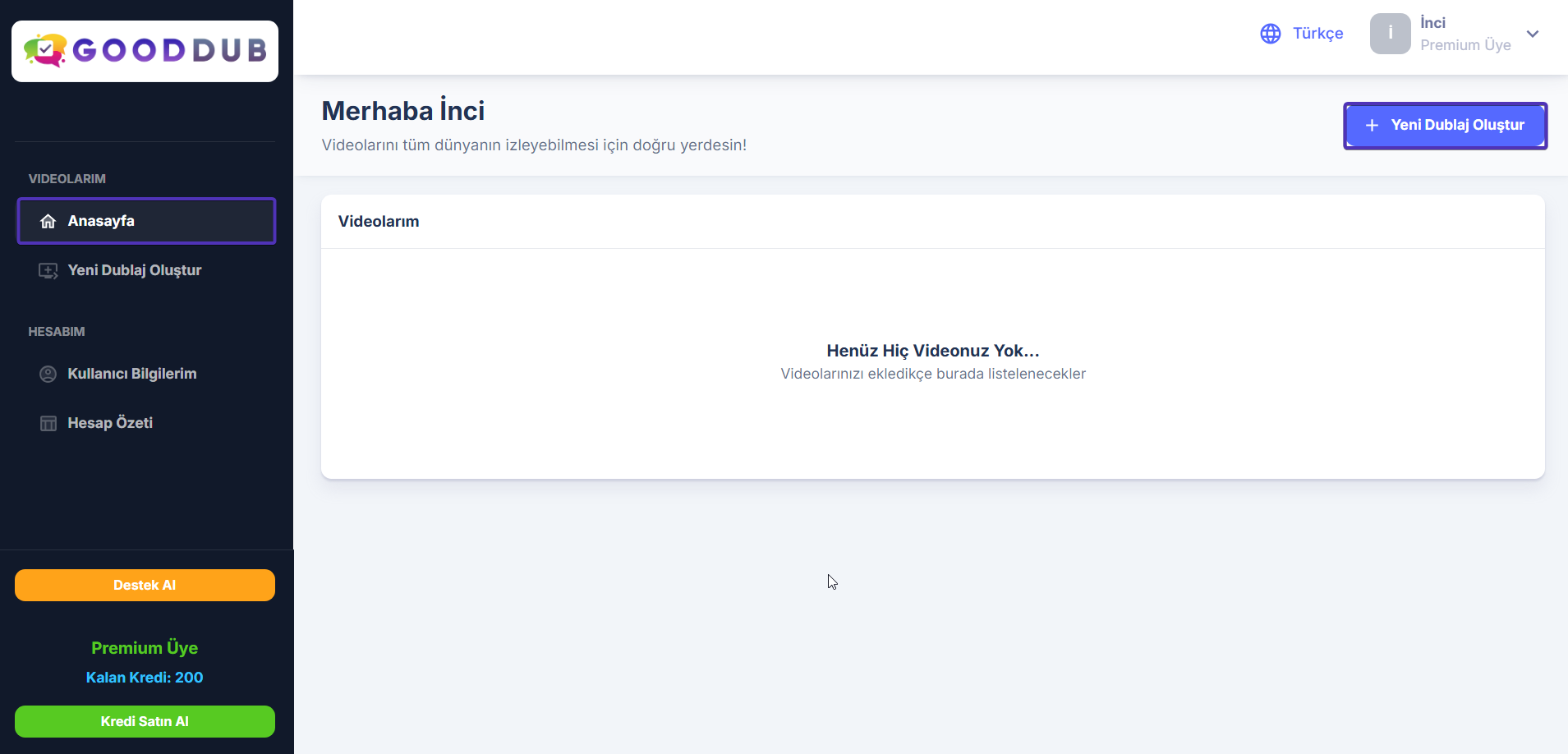
Or you can use the "Create New Dubbing" button on the Homepage.
You will reach the "Create New Dubbing" page: 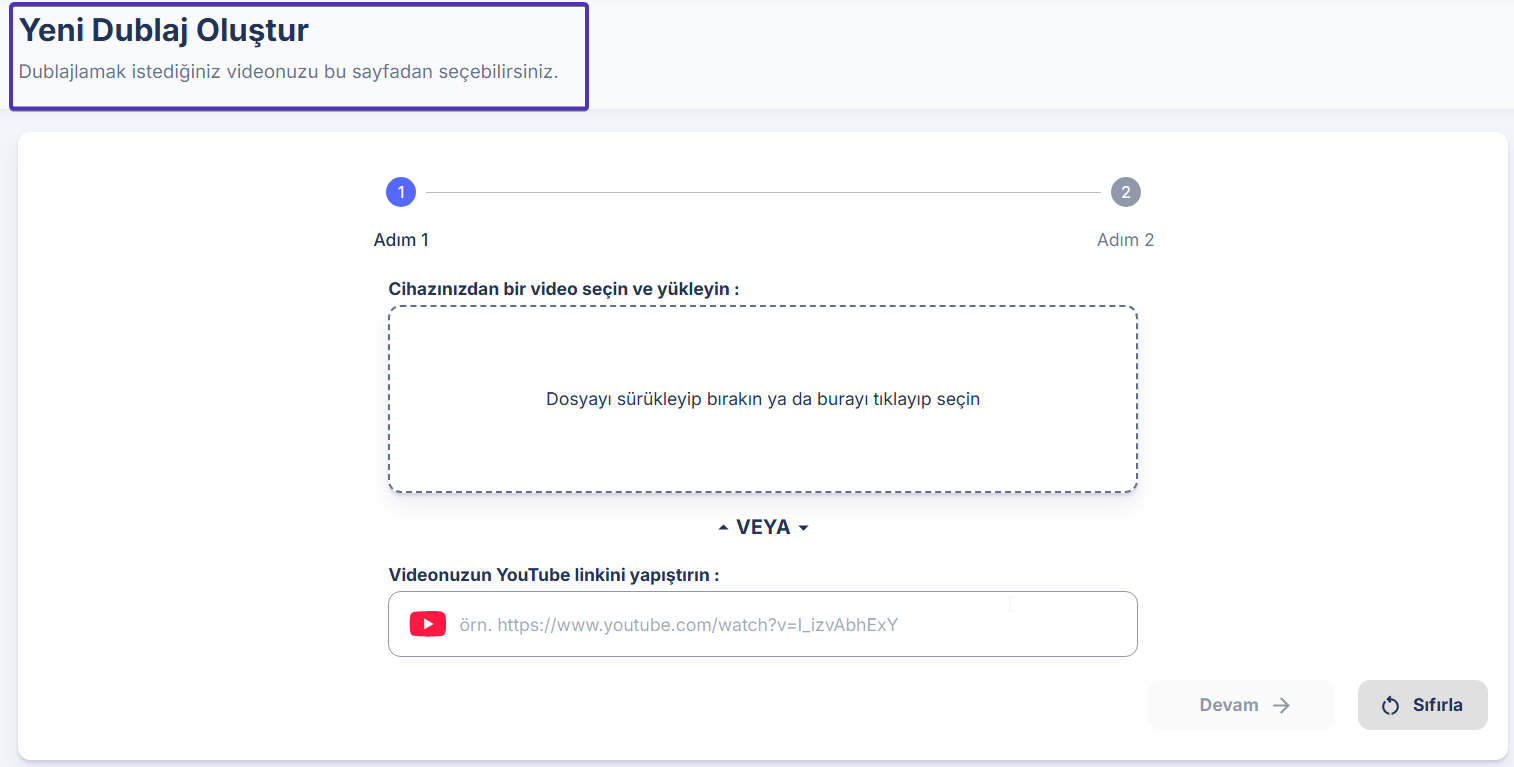
New Dubbing Creation Steps
You can create your dubbing project in just 2 steps.
Step 1: Upload Your Video
You can upload video files you created yourself
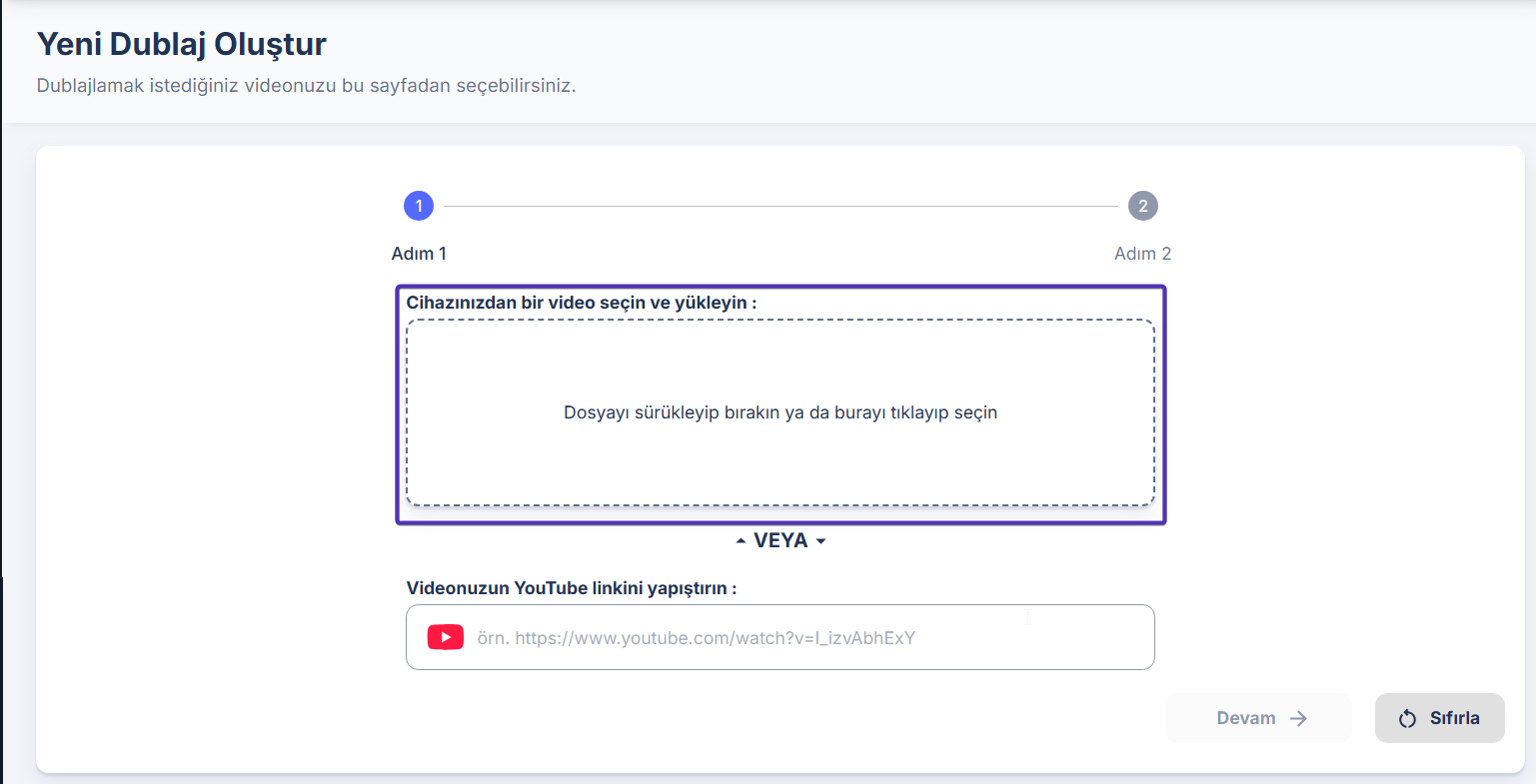
or you can add a YouTube video URL that you want to dub:
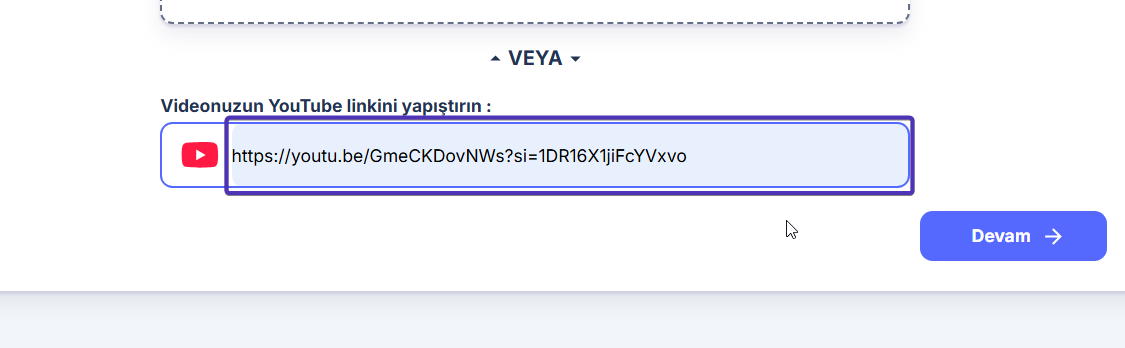
Click the "Continue" button to proceed to the next step.
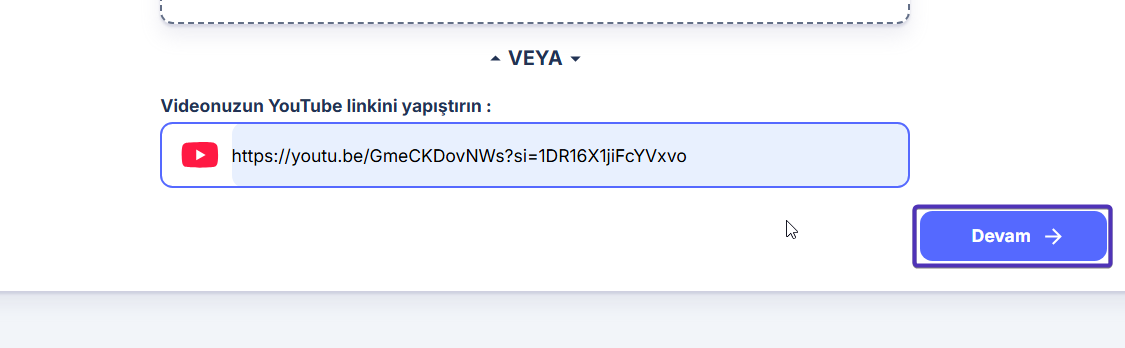
Step 2: Set New Dubbing Creation Preferences
In this step, you can set your preferences for creating a new dubbing.
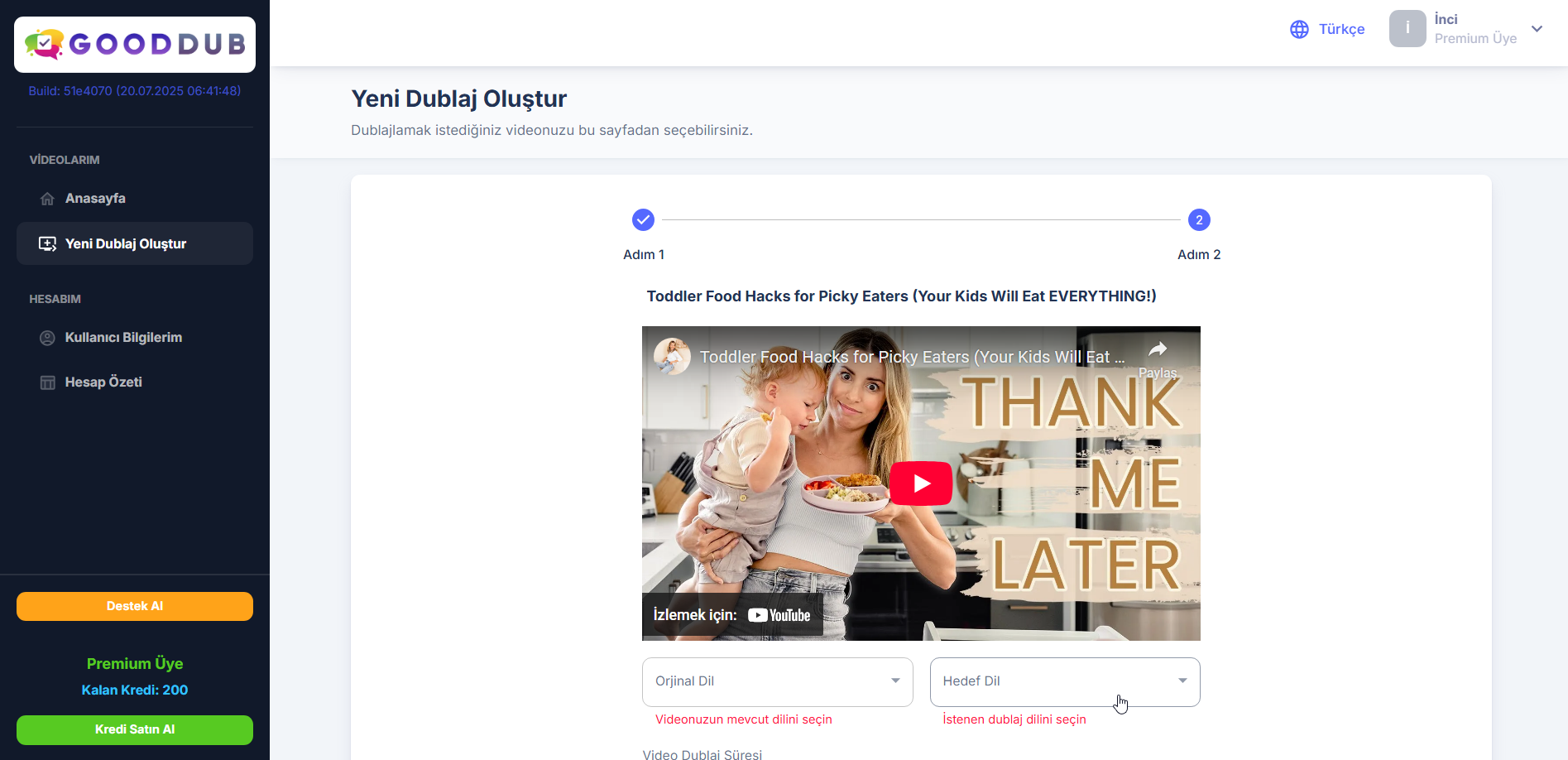
Original Language Selection
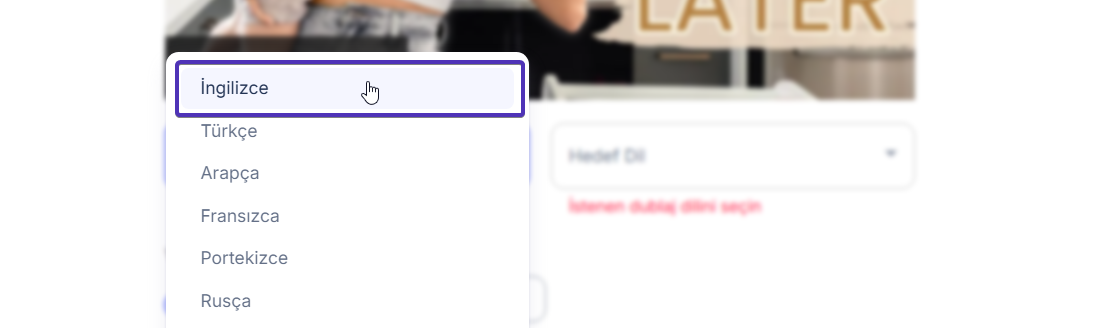
You can select the original language of your uploaded project from here: 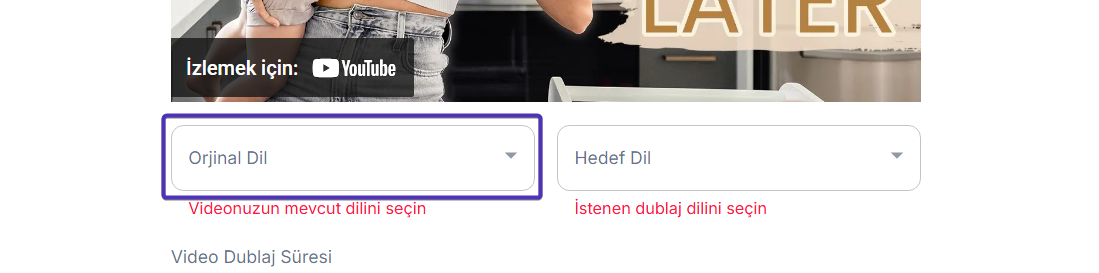
For example, we select English for this project:
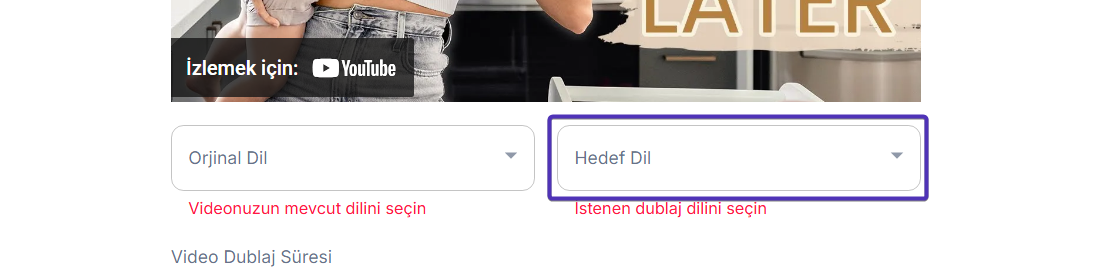
Target Language* Selection
Target language* indicates the language you want your video to be translated to.
We want it to be translated to Turkish: 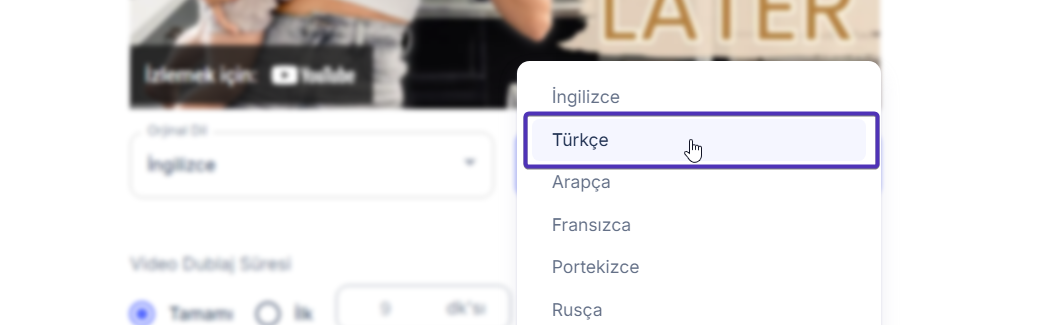
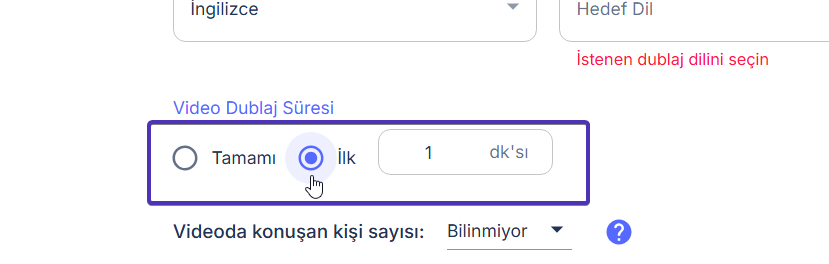
Dubbing Duration Selection
You can select the entire video or the duration you want to translate:
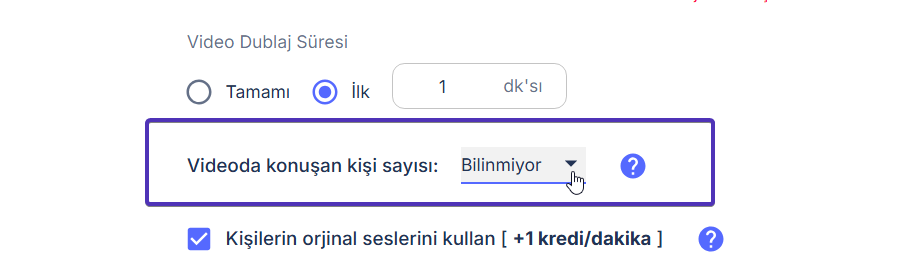
Number of Speakers in Video Selection
Indicates how many people are speaking in the video. This information improves the quality of AI dubbing. If you don't know, select the 'Unknown' option. In this case, the AI will try to automatically determine the number of speakers in the video:
Voice Cloning
With the "Use people's original voices." option, you can get dubbings that use the voices of people in the video. 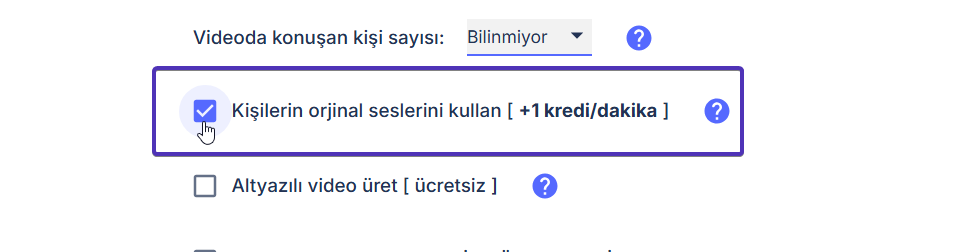
Generate Subtitled Video (Free)
With this option, you can add subtitles to your dubbing.
Moreover, this option is free and doesn't use your credits! 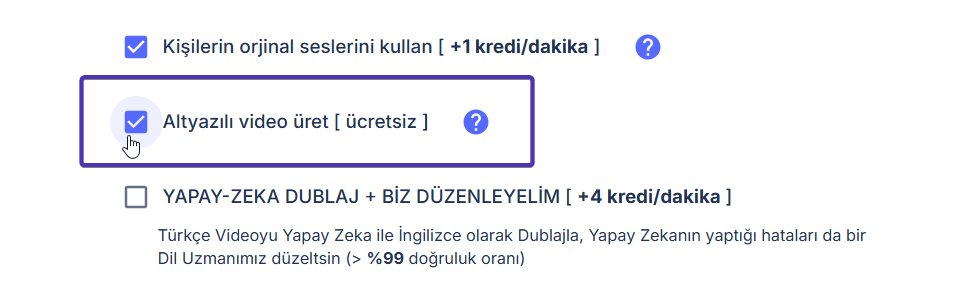
Language Expert Support (Premium Member)
By selecting this feature, you can get language expert service. Or you can leave this selection empty and recreate your dubbing by making your own edits on the Watch/Edit Dubbing page after AI translation.
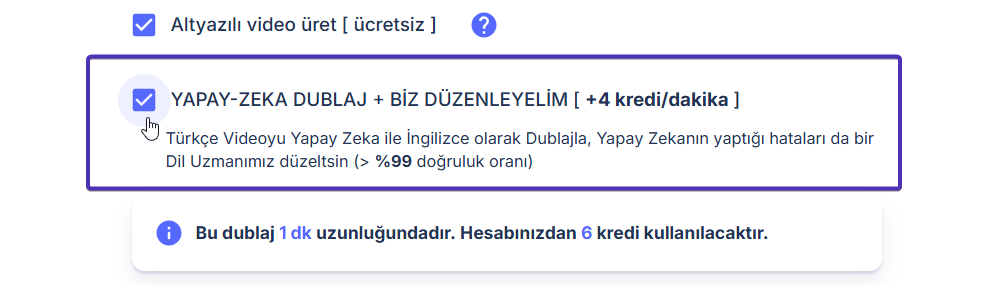
Language expert support is a service we offer to our premium members.
When you request this service, your dubbing is reviewed by our expert editors and the errors made by AI in your dubbing are corrected and brought to its best version with human touch.
For more information, contact us: GoodDub Support email, info@gooddub.com
After these selections, you're ready to click the "Dub" button! 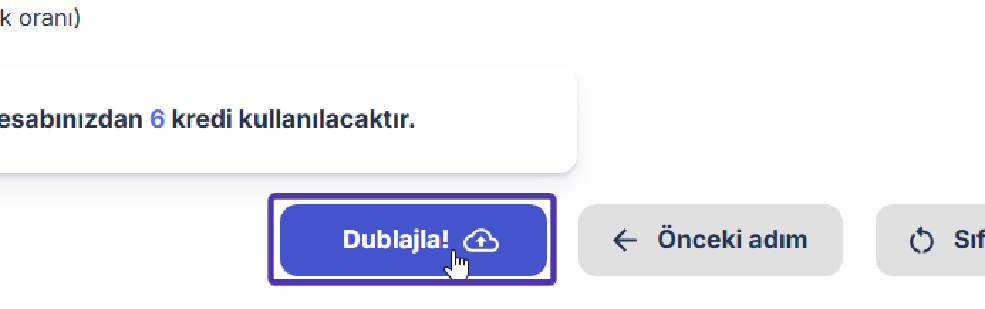
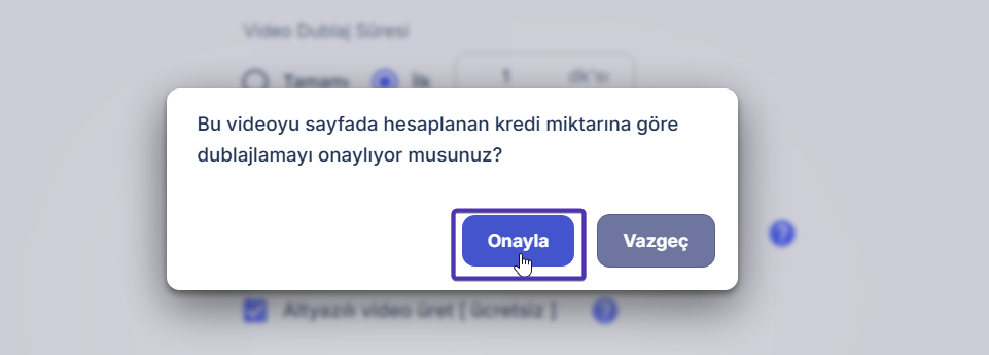
One last step: You can complete your dubbing project by clicking the "Confirm" button.
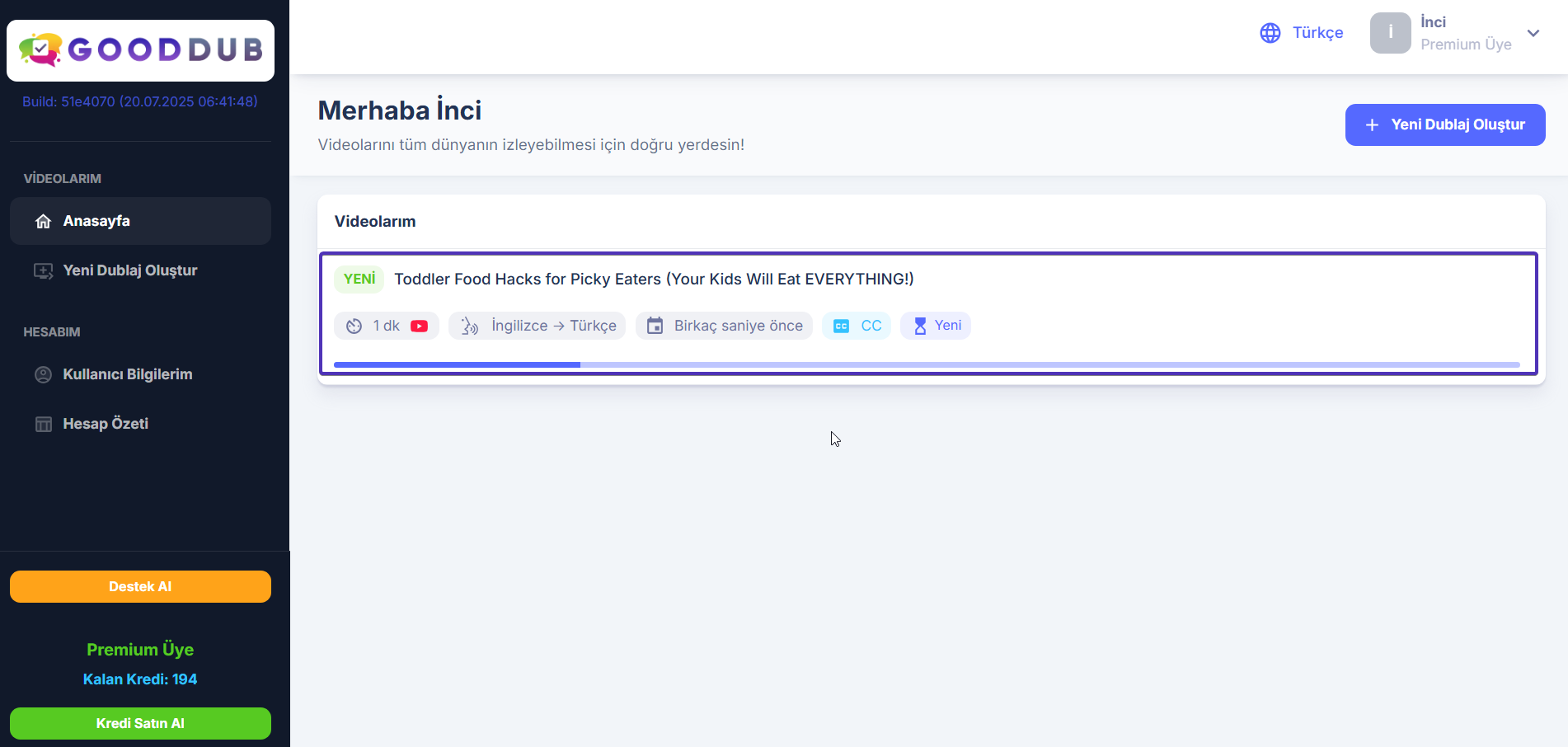
Your dubbing is being prepared...
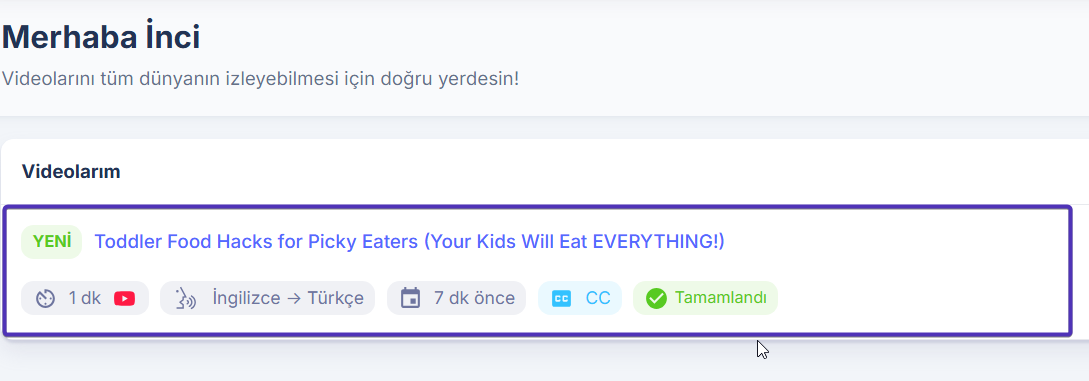
Your dubbing is completed and ready to view!
Dubbing Project Statuses and Their Meanings
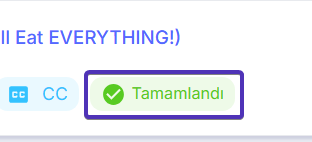
"Completed"
If you see "Completed" written under the project name, your video is ready. You can view the result by going to the Watch/Edit Dubbing page of your dubbing and make changes if you want.
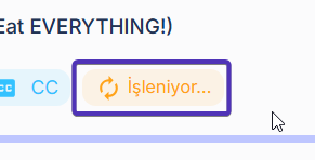
"Processing"
This status means your dubbing is being prepared by our AI.
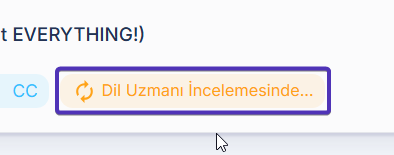
"Under Language Expert Review"
This status shows that your dubbing is being reviewed by our language experts.
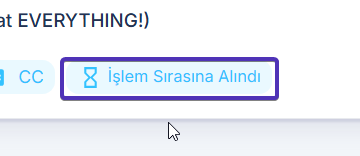
"Queued for Processing"
This means your dubbing has been queued for processing due to reasons such as heavy usage/quota and is waiting to be processed.
"Cancelled"
You can see this project status in your cancelled dubbings.
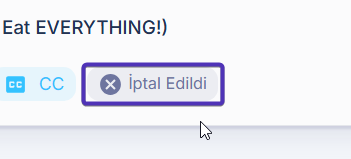
Content that does not comply with GoodDub community rules is cancelled.
"Error Occurred"
If you see this status in any of your videos, we're sorry, it means an error occurred in your project. But don't worry, when such a situation occurs, we refund the credits you used for this project!
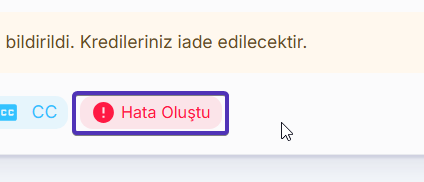
Sometimes your dubbings may fail due to traffic or technical glitches. In such cases, definitely contact us through "Get Support".
What can you do after your dubbing is completed? Check out the Watch/Edit Dubbing page.