Dubbing Troubleshooting / Improvement
Created: July 22, 2025
Created by: GoodDub Support
Although artificial intelligence helps us achieve fast dubbing results, it is not always possible to achieve the quality and natural results we want in video dubbing production, which has many parameters such as video content and voice tone.
Thanks to GoodDub's dubbing editing editor, which has automatic error detection and flexible usage, these results, which are not always predictable, can be greatly improved.
Let's see how you can do this together!
Troubleshooting with Drag-and-Drop Timeline
If there is a speed problem in any sentence in the "Video Stream" panel, it is marked thanks to this automatic error-detecting dubbing editor.
You can view the problematic segment both on the timeline and on the sentences:
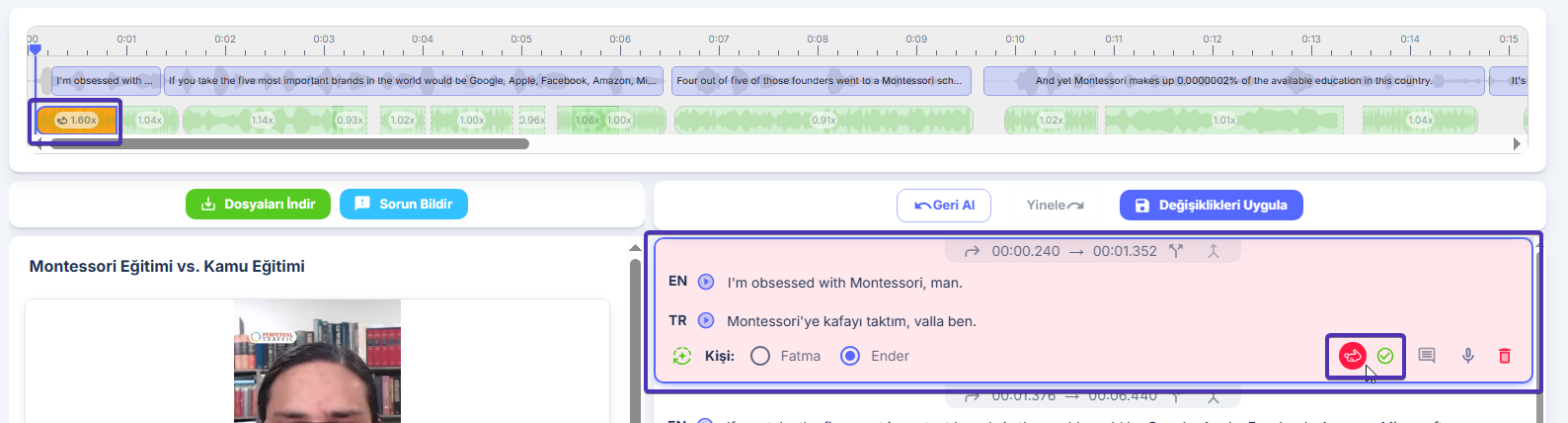
Fast Sentences Compared to Original
Marked with a rabbit icon.
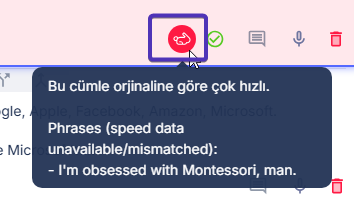
Slow Sentences Compared to Original
Marked with a turtle icon.
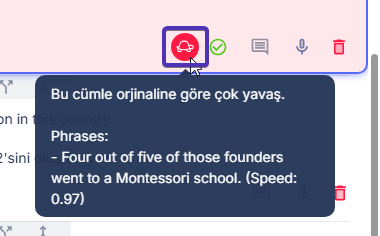
How to Fix Dubbing Timing Issues?
The segments on the timeline can be moved by dragging and dropping, and you can instantly view the change in your dubbing video:
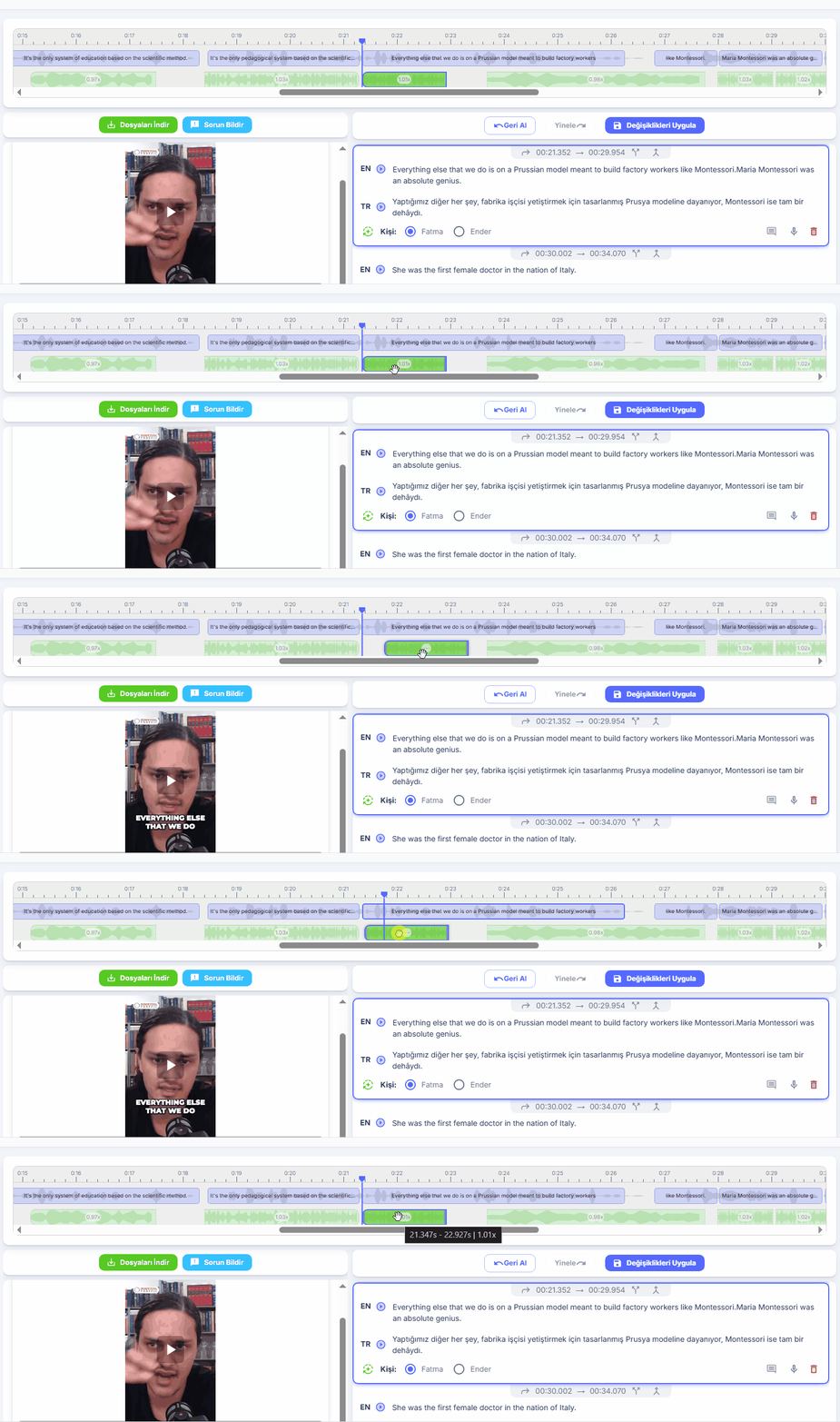
At the same time, dubbing voices at speeds similar to the original can be obtained by extending and shortening.
A segment marked as fast is brought to 1.0x speed when extended by pulling to the right:

A segment marked as slow is brought to 1.0x speed when shortened by pulling to the left:
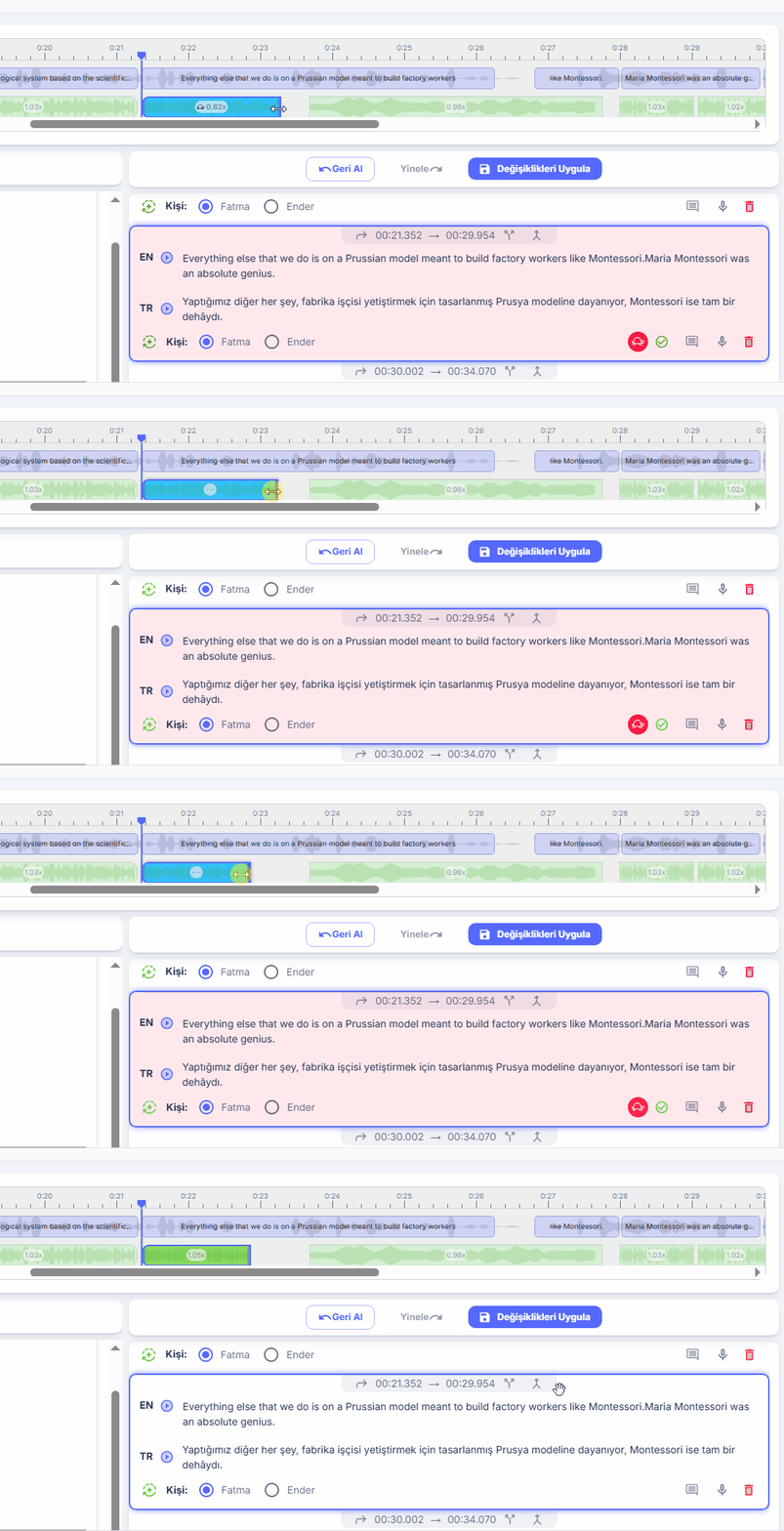
allows you to instantly view the changes you make on the dubbing video.
Ignore Problem / Ignoring
If you think that the sentences marked as problematic in your dubbing do not create a problem in the dubbing result and are suitable for the structure of your dubbing, you can save your dubbing as it is and download it directly by clicking the "Ignore Problem" button:
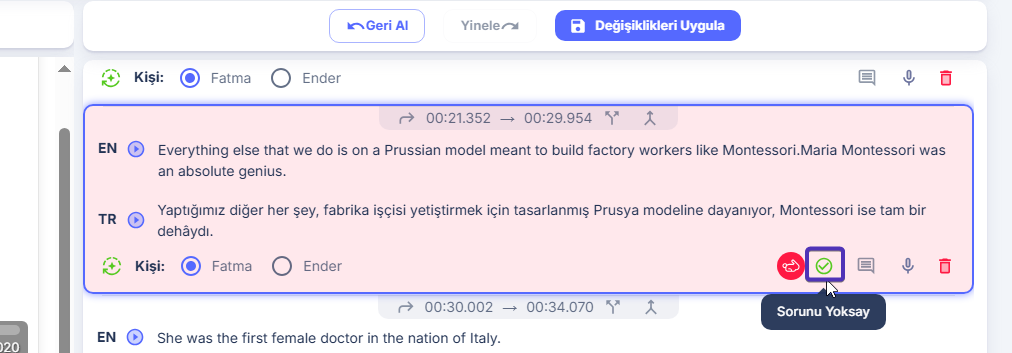
Don't forget to save your dubbing by clicking the "Apply Changes" button so that your changes are applied to your dubbing and you can download your dubbing in its new form!
To download your dubbing, you can browse the Dubbing Download and Review page.