Watch / Edit Dubbing
Last Updated: July 22, 2025
Updated by: GoodDub Support
Despite all developments in the artificial intelligence field:
- Converting spoken text to written text
- Translating written text to another language
- Voicing the text in the new language
The accuracy rate at the end of these stages rarely exceeds 90%.
You can easily correct all the errors that occur in these stages in the resulting voiceover on this page.
How do you access a completed dubbing project?
1. Click on "Homepage".
You can easily access your completed or processing videos from the "Homepage".
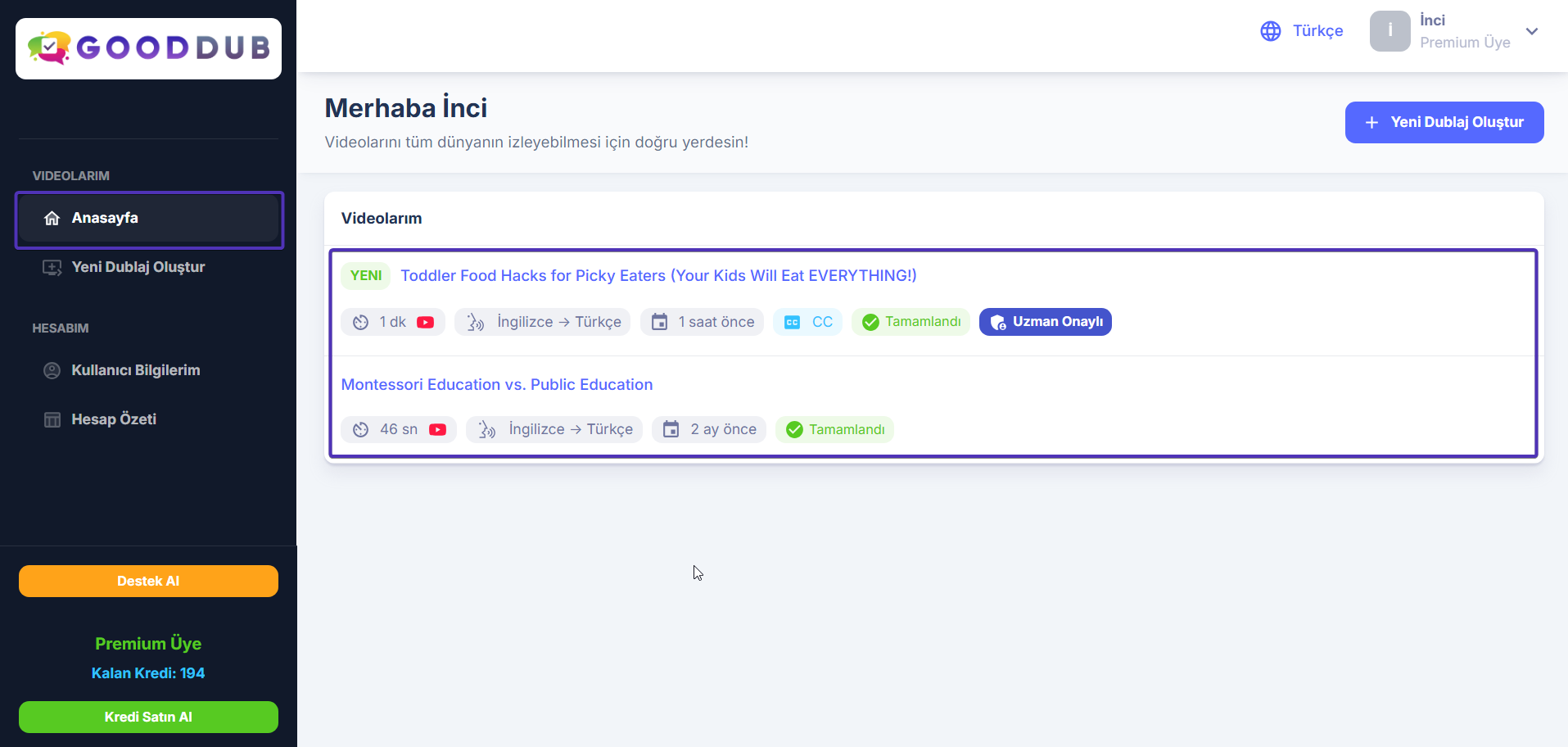
2. Click on the name of a completed video 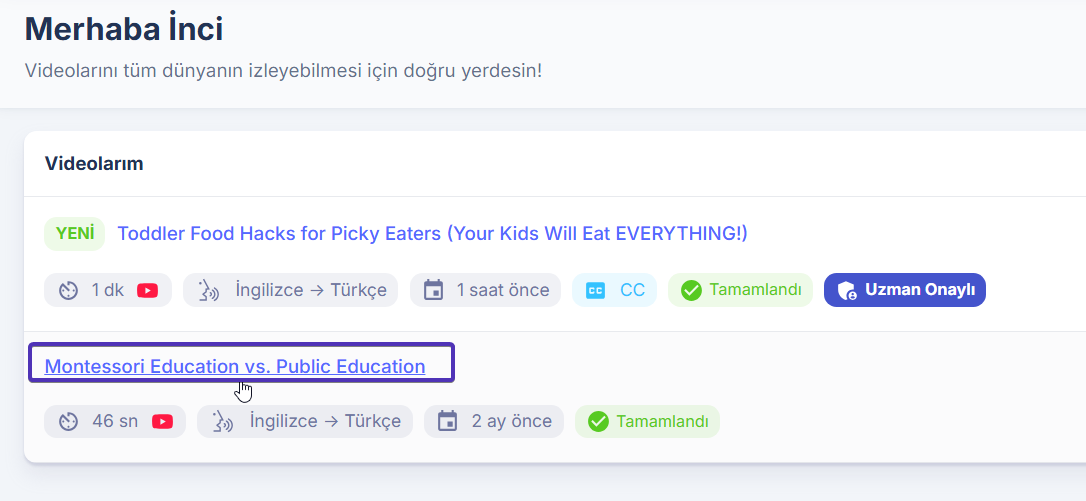
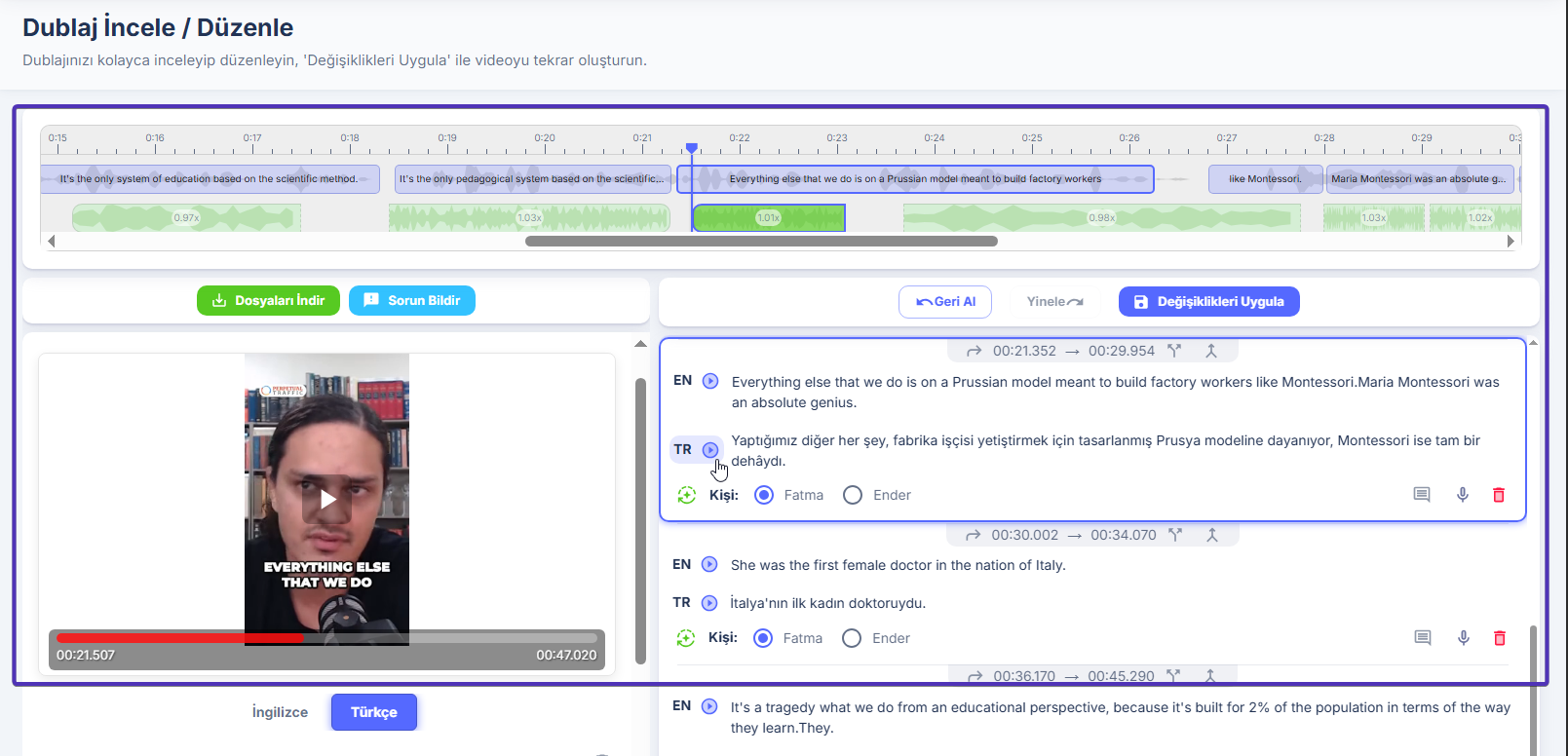
You will reach the "Watch / Edit Dubbing" page of your completed video: 
What's on this page?
"Download Files", "Report Problem" buttons 
You can access the page where you can download the files of your completed video dubbing with the "Download Files" button. For page details, browse "Dubbing Download & Review".
When you click the "Report Problem" button
You can access the "GoodDub Customer Support" panel and report the problem to us!
Video Preview Panel
You can view your Original and Translated videos in this area.
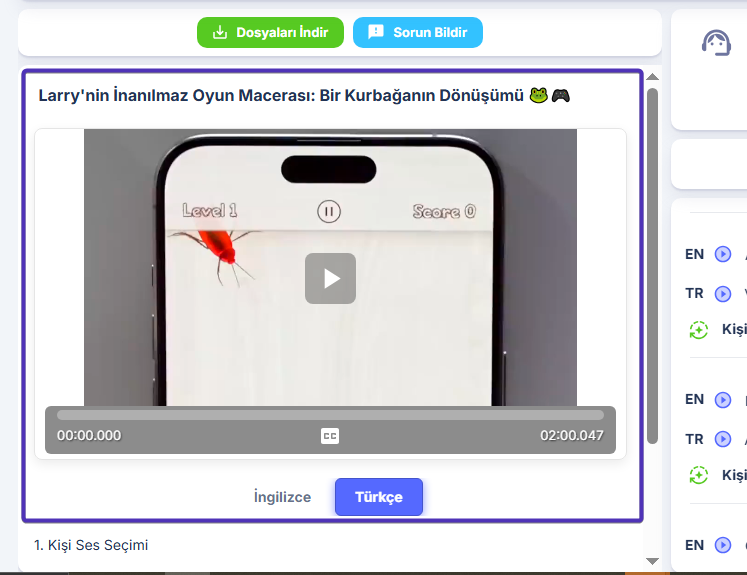
You can watch your original video,
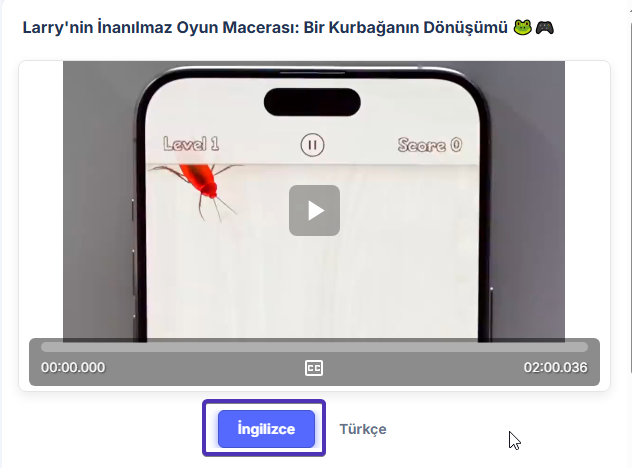
or your translated video and make comparisons:
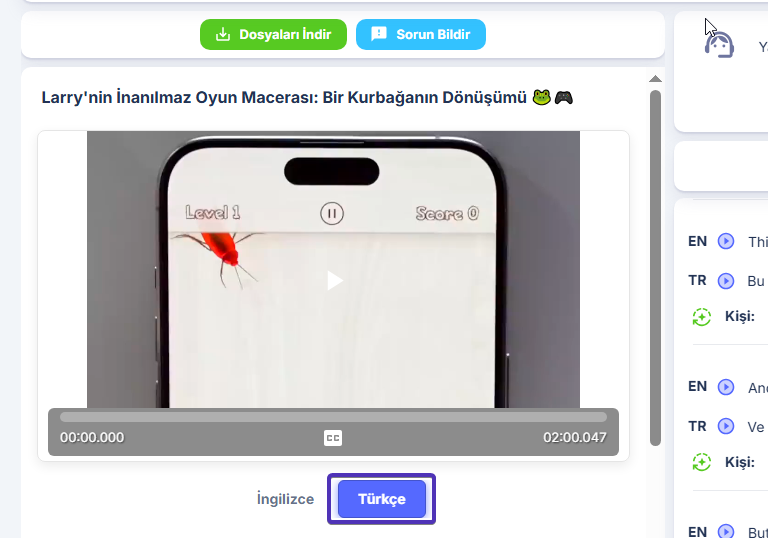
You can also view your dubbing video both with and without subtitles using the CC subtitle button on your dubbing video.
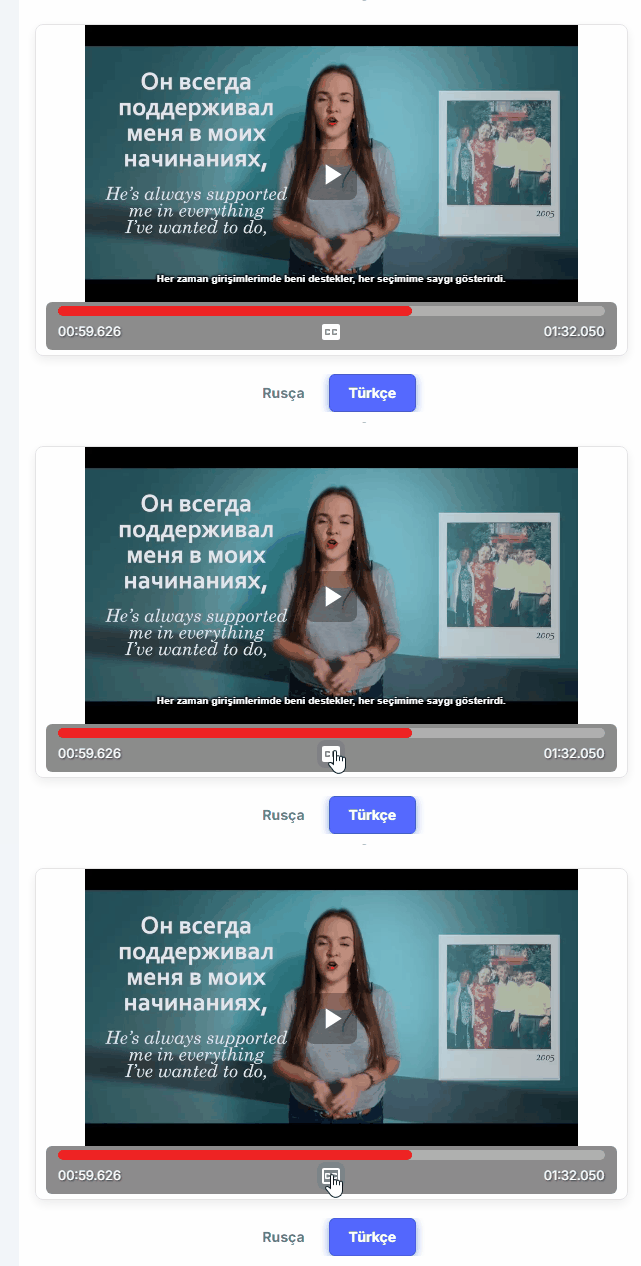
The dubbing you view in the video player on the dubbing editing page is a low-resolution preview. It was developed for use only during editing. You can download your high-quality dubbing result from the Dubbing Download & Review page.
Drag-and-Drop Timeline
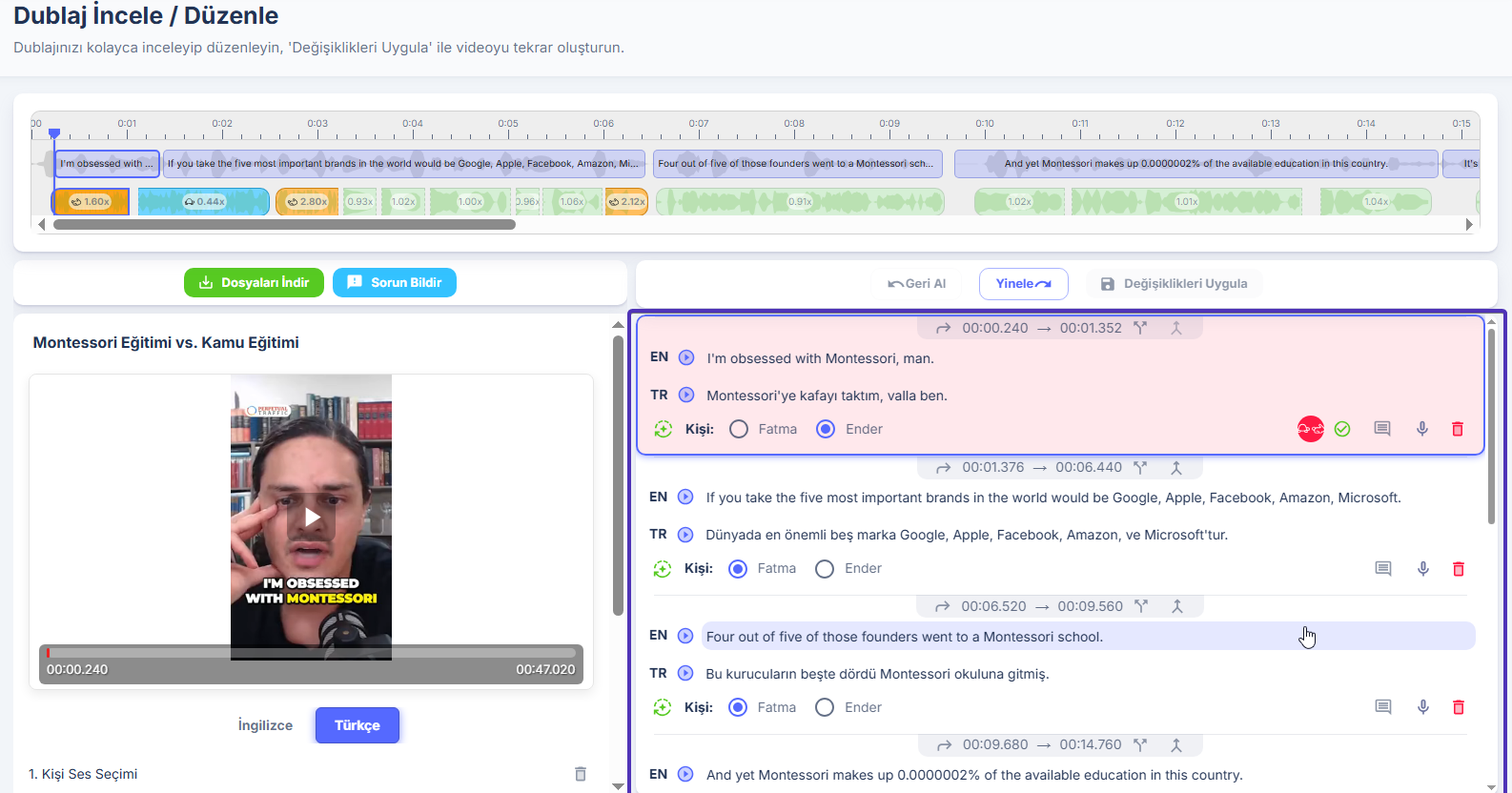
The timeline allows you to track the position of your original transcript and translation texts simultaneously while your videos are playing. The timeline has a flexible structure that allows you to make changes to your dubbing. To see what you can do, visit the Dubbing Troubleshooting/Improvement page.
Video Stream Panel
Let's look at the "Video Stream" panel: 
You will see the original and translation texts in the video whose positions are shown on the timeline here: 
If you want to make changes/corrections to the texts, just click on the sentences. Press enter or click the confirmation icon to save your changes.
The translation text is automatically replaced with the new translation and audio is regenerated for this sentence.
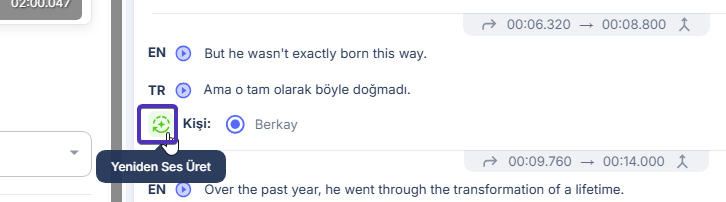
Regenerate Audio with TTS
You can regenerate audio for each sentence/part on the video stream with this button next to each part
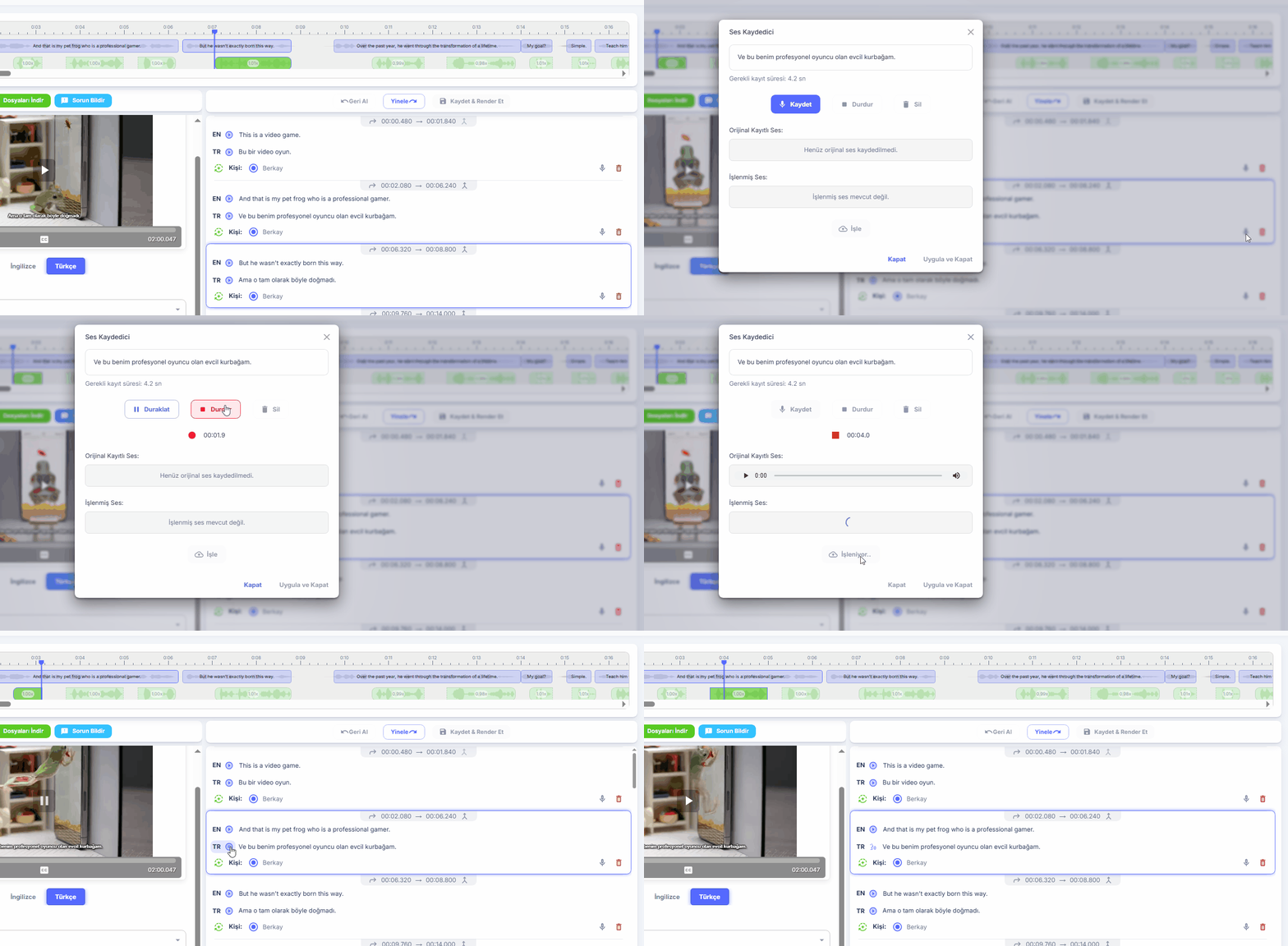
Customize Tone / Emphasis with Voice Recording
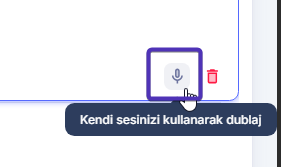
Using the voice recording button
You can achieve more natural tones and emphases for any sentence/part you want in your dubbing:
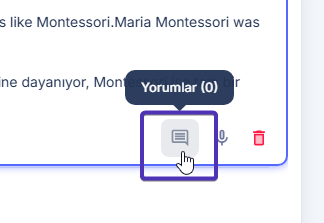
Add Comment
You can leave comments for each sentence in your video stream.
Merge Sentences
You can merge two different texts on the video stream panel.
By clicking this button, you can merge the top part/sentence with the bottom sentence:

Live and Synchronized Preview
When you play your dubbing or original video through the video player, you can track it synchronously both through the video stream panel and through the timeline.
You can also view synchronously by pressing the play button next to the sentences on the "Video stream".
You can view separately for both original and translated video texts. 
Thanks to live preview, the changes you make are regenerated on the editing page and you can preview the change instantly on the video player.
"Person Voice" Selection
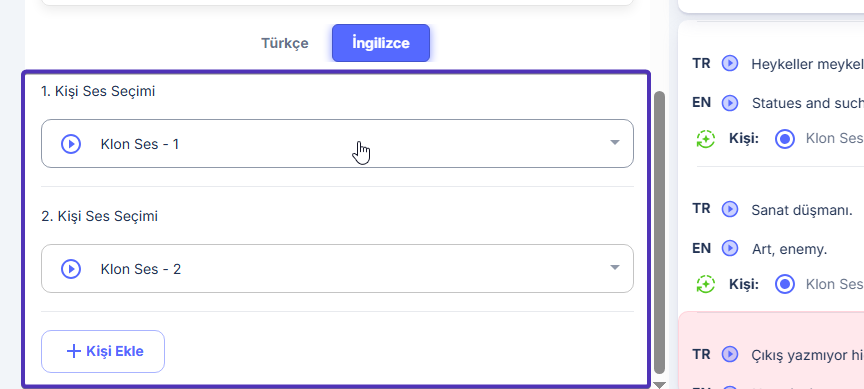
In this area, you can view the voices assigned to the people speaking in your dubbing. If you selected the "Use people's original voices." option when creating your dubbing, you will see the voices here as Clone Voice - 1, 2.

Here, if you want, you can choose from ready-made AI voices from our voice library and apply new voices to your dubbing.
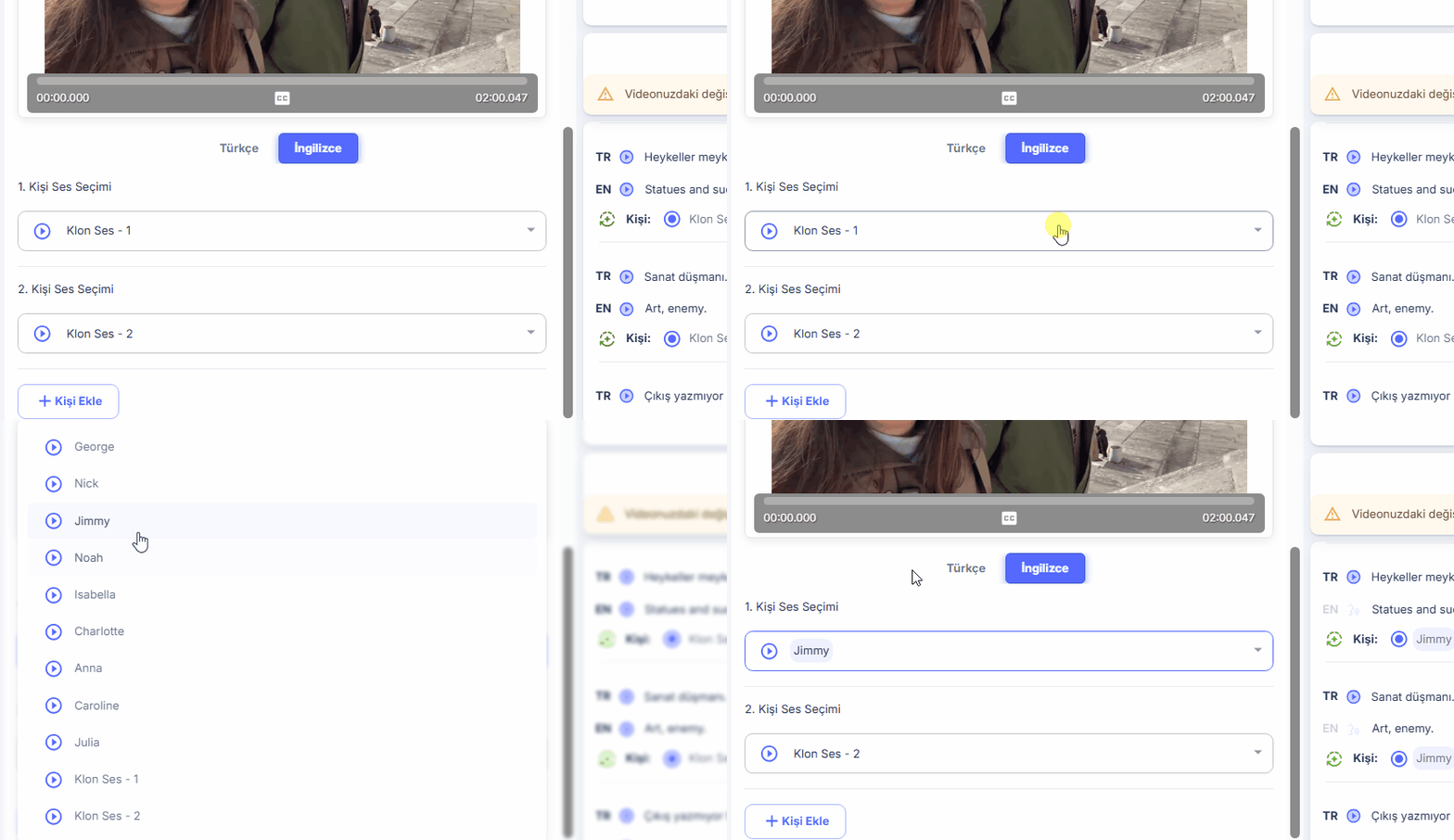
You can assign the voicing of each sentence on the video stream to a person you want:
"Person": from here you can choose from the person voices in your dubbing and determine who will voice a sentence in the video stream.
If you think the number of people in your video is insufficient, you can add new voices to your dubbing project by clicking the "Add Person" button.
When you change existing voices in your dubbing or add a new voice, you need to regenerate audio to preview this change in your dubbing.
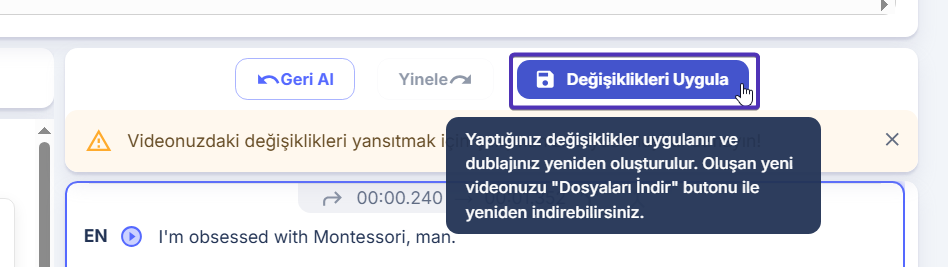
 Don't forget to click the "Apply Changes" button for your changes to be applied!
Apply Changes, Undo, Redo
You must click the "Apply Changes" button for the changes you make to your video dubbing project to be saved and your project to be reprocessed and prepared.
You can undo all changes you make on the "Watch/Edit Dubbing" page by clicking the "Undo" button, and repeat the last change with the "Redo" button.
Don't forget to click the "Apply Changes" button for the changes you make on the editing page to be applied to your dubbing!**
Congratulations, you now know how to edit your dubbing video!
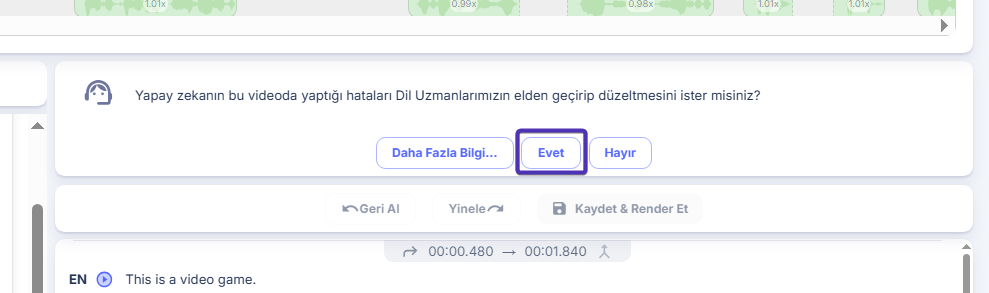
Language Expert Request Panel (Premium Member)
If you want our Language Experts to review and correct the errors that artificial intelligence made in this video on your behalf, just click the "Yes" button. Your request will be sent to us.
By choosing this option:
- You can request our Language Experts to edit your dubbing project for you.
- Your video will be thoroughly reviewed and brought to 99% accuracy.
- If you think it hasn't been achieved, you can request unlimited revisions.
To download your dubbing, you can browse the Dubbing Download and Review page.